
We are experiencing a high volume of calls during this period. If you need to speak to the box office team, please call and request and call back. A member of the team will call you back as soon as possible and your position in the queue will remain. Alternatively, you can email [email protected].

Season Ticket & Premium Seat Holders Digital Ticketing FAQs
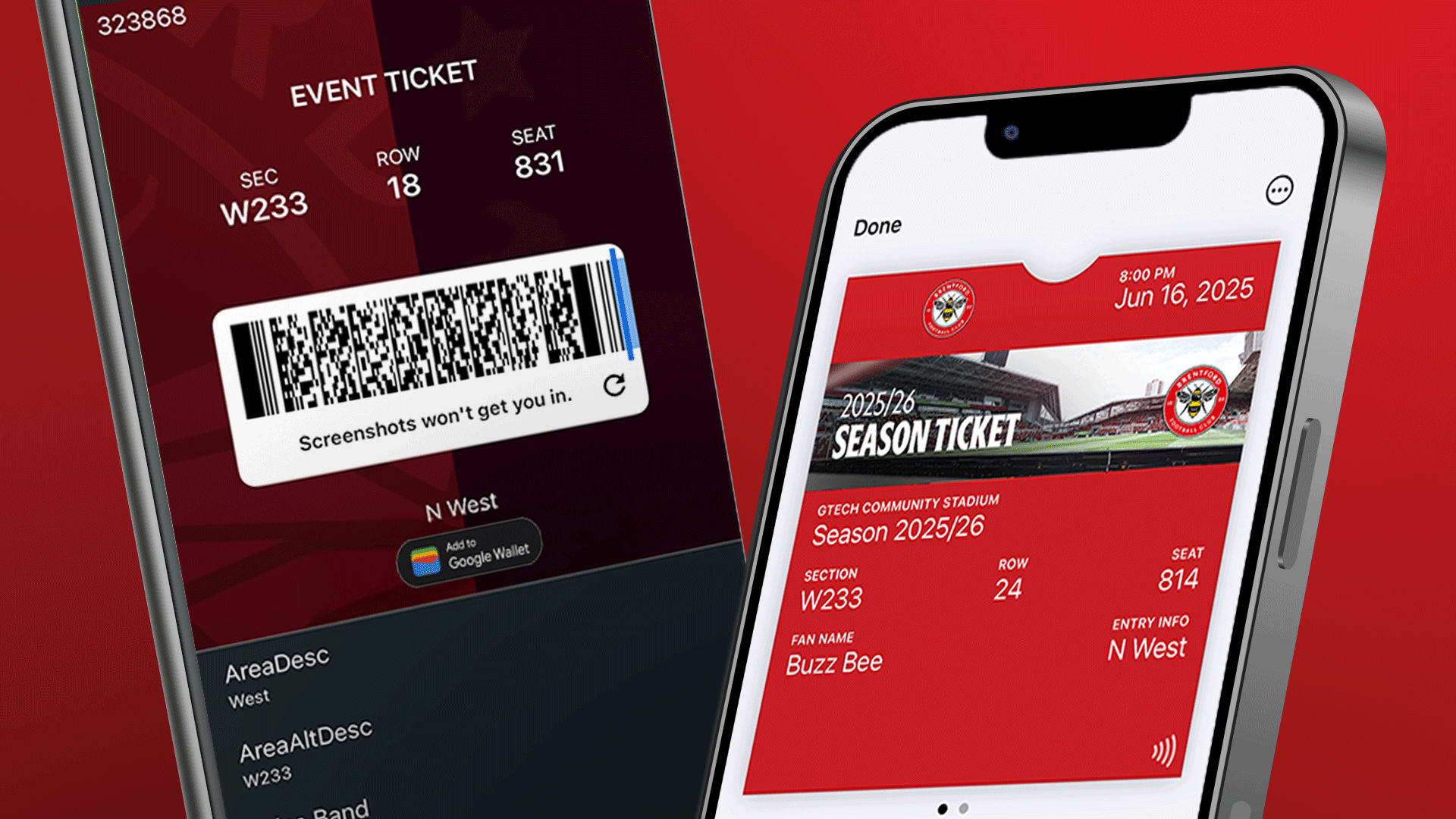
Accessing and managing your season ticket
Any purchased tickets, or season tickets will appear in the ticketing hub on the Brentford FC Official App closer to the start of the season. We’ll notify you as soon as it’s ready to view and download to your mobile wallet.
All season ticket holders will receive a digital season ticket before the start of the new season. Tickers will be available to access through the Brentford FC Official app before to the start of the season. You’ll receive a notification once it becomes available.
We strongly recommend downloading your digital season ticket to your Apple or Google Wallet to keep it saved on your mobile device throughout the season.
Your digital season ticket will automatically update to grant you access to each home match. Don’t worry if the next fixture doesn’t immediately appear - your access will still be valid at the turnstiles unless you’ve shared or resold your ticket via ticket forwarding or the ticket exchange.
As an alternative to downloading your ticket to an Apple or Google Wallet, you can also view your match ticket in the Brentford FC Official app by logging into your account. Each ticket will appear on your app digital ticketing page ahead of the fixture.
Season ticket holders should follow these guides for information on how to download and access your digital season ticket.
To download and access your season ticket, follow the steps in this guide:
(Season ticket holders) How to access and download your digital season ticket-
Please note that you won't see any tickets in your account yet. Any purchased tickets, or season tickets will appear in the ticketing hub on the Brentford FC Official App closer to the start of the season. We’ll notify you as soon as it’s ready to view and download to your mobile wallet.
If you are the lead booker and have purchased for a junior, all tickets will be available on your device. Lead bookers will be able to access junior tickets in the Brentford FC Official App prior to the start of the season. We’ll notify you when your junior tickets are available in your account. Please note, once a ticket is downloaded to a device, it can’t be downloaded to another device. Make sure you download it to the device you plan to use at the stadium.
If you are the lead booker and have purchased a season ticket for a junior (U18), you will be able to access and download their ticket to your own mobile device.
Lead bookers will be able to access junior tickets in the Brentford FC Official App prior to the start of the season. We’ll notify you when your junior tickets are available in your account.
You will be able to:
View their ticket in your Ticketing Hub within the Brentford FC Official app.
Download their ticket to your Apple Wallet or Google Wallet.
Use your device to scan both your own ticket and your junior’s ticket on matchday.
If you haven’t purchased a season ticket on behalf of your junior, please contact the box office. Our team will ensure you can access their ticket on your mobile device.
Season ticket holders will gain access to purchase extra ticket(s) for Category B fixtures 48-72 hours prior to the fixture, subject to availability.
When purchasing a ticket, season ticket holders should assign the extra ticket(s) to a Brentford FC ticketing account holder at basket.
Once the ticket has been assigned to a Brentford FC ticketing account holder, they can access their tickets via the Brentford FC Official app.
The guest must download the app, log in using their Brentford FC ticketing account, and go to ‘Access Tickets’ on the ticketing hub.
If you’ve purchased a ticket for a guest who has a Brentford FC ticketing account but does not have a mobile device, the guest should collect a physical ticket from the Brentford FC box office and show valid ID to confirm they are the correct recipient.
The box office is open 2 hours and 30 minutes before kick-off on matchdays and remains open until half-time. View full opening hours here.
If the guest is a junior, you can download their ticket to your own device.
As the lead booker, you can access and download all tickets you have purchased for under 18s (including those for guests) to your own mobile device via the Brentford FC Official app.
Log in to your Brentford FC ticketing account (as the lead booker).
Go to the Ticketing Hub.
Select ‘Access Tickets’.
Choose the relevant fixture.
Tap ‘Add to Apple Wallet’ or ‘Add to Google Wallet’.
Once downloaded to your device, you can use your phone to scan in both your own ticket and any guest tickets on matchday.
Once you’ve successfully downloaded your digital season ticket, you can access it at any time in one of the following ways:
Apple Wallet (iPhone) or Google Wallet (Android): Open the relevant wallet app on your phone to view your digital ticket.
Brentford FC Official app: Log in to your account, go to the ticketing hub, then select ‘Access Tickets’. View our step-by-step guide here:
All season ticket holders will receive a new digital season ticket before the start of the new season. Fans will be notified via email around one week before the first home league match of the season and tickets will be available via the Brentford FC Official app.
No. Due to the secure format of digital ticketing, you cannot print or screenshot your season ticket for entry.
Your season ticket will be accessible on your mobile device as a digital ticket. If you're unable to attend a match, you can forward your ticket to someone else through your online account. View more on forwarding tickets in our season ticket holders’ 'ticket forwarding' FAQs below.
Yes. Season ticket holders can forward their digital ticket to someone in their Friends & Family Network.
For Category A* fixtures, season ticket holders will be able to forward their ticket to anyone in their Friends & Family Network who is a member and meets the TAPs criteria.
E.g. Liverpool (H) – the recipient of the forwarded ticket must be a member and have 100+ TAPs.
For category A & B fixtures
Season ticket holders will be able to forward their ticket to anyone in their Friends & Family Network with a Brentford FC account
For full details, please see our season ticket holder 'ticket forwarding' FAQs below.
If you change phones, you’ll need to remove the pass from your old device before re-downloading it on your new one.
If you receive an error stating that your ticket has already been downloaded, please contact the box office who will be able to assist you.
We know that not all fans will be able to access their season ticket on their phone. Exemptions for fans with exceptional circumstances, such as limited access to, or knowledge of, the necessary technology, or fans with access needs, will be available to those who still require a physical season card.
Exemption requests can be submitted using this form. While our aim is to help all fans feel confident using digital tickets before the Premier League’s 2026/27 season deadline, we will allow exemptions on a case-by-case basis to ensure you are not disadvantaged by the move away from physical season cards.
If a season ticket holder does not have a smartphone, please see FAQ ‘My junior does not have a smartphone – how will I access their digital ticket?’ or ‘How do I access tickets for a guest without a smartphone?’
Troubleshooting help
Please do not delete your digital season ticket from your mobile device. However if you do, please re-download via the app.
To re-download your digital season ticket to your mobile device: follow the steps in this guide:
How to access and download after deleting a ticket
If you are unable to locate or re-download your season ticket, please email the box office at [email protected] or call on 0333 005 8521.
We strongly recommend ensuring your phone is fully charged before setting off for the match.
Head to the Brentford FC box office. We’ll have self-service charging stations available so you can power your phone and access your ticket.
Alternatively, you can collect a physical ticket from the Brentford FC box office.
The box office is open 2 hours and 30 minutes before kick-off on matchdays and remains open until half-time. View full opening hours here.
If your ticket is saved in your Apple Wallet or Google Wallet before you arrive, you won’t need internet connection on your phone to scan your ticket. Please ensure your device is charged and ready to scan at the turnstiles.
If you haven’t added your digital season ticket to your wallet, you’ll need mobile reception to access it via the Official Brentford FC App. For this reason, we strongly recommend downloading your ticket in your Apple Wallet or Google Wallet ahead of matchday.
If your digital season ticket hasn’t updated, don’t worry - your pass will still work at the turnstiles as long as:
Your ticket has not been forwarded or re-sold via the ticket exchange or ticket forward.
You are using the most recently issued version of your ticket.
You can also view your digital season ticket in the Official Brentford FC App. Log into your account, go to the ticketing hub, and select ‘Access Tickets’ - your ticket will appear on the app 48 hours before kick-off, along with other matchday content and information.
Apple/iPhone users:
You can try manually updating your pass by following these steps:
Navigate to your pass in your Apple Wallet.
Tap on the ‘i’ in the corner.
Select "Pass Details".
Turn off "Automatic Updates", wait a moment, then turn it back on.
Alternatively, hold the icon and swipe down.
Wait for the pass to say “updated just now”.
Once the spinning wheel has disappeared, tap on the back arrow in the top left-hand corner to return to the main pass.
The next fixture should now be displayed.
If you have recently updated your phone and your pass has been removed, then scroll down and click “Edit Passes” to unhide the pass and the follow the above steps to manually update it.
Android users:
First, check you are using the most up to date version of the Google Wallet app.
Click on the three dots in the top right corner - your game details may only be displayed once you have pressed this.
Check you don't have multiple tickets attached to your pass by tapping on the pass and swiping left to right on the last fixture.
Alternatively, we recommend you turn your device off and on again.
To ensure you can enter through the turnstiles on matchday, please make sure:
NFC is enabled on your device (Settings → Connected Devices → NFC)
Google Wallet is set as your default contactless payment app (Settings → NFC & contactless payments → Contactless payments → choose Google Wallet)
If those are active and it's still not working:
Check for recent system or app updates
Some users have noticed NFC issues after updates, which may resolve with subsequent security patches
Look out for any routines or automations
Like turning NFC on/off when opening or closing the Wallet app—disabling these has fixed the issue in some cases
Delete the app and reinstall it. When going through the setup process again, follow one of the scenarios below to avoid getting stuck in a location permissions loop:
Situation 1: Allowing no location at all
Pop up 1: Select Cancel for foreground location
This takes you to the login page. Not allowing foreground location also means the app cannot request background location.
Situation 2: Allow Foreground, Deny Background
Pop-up 1: Select OK.
Pop-up 2: You’ll be directed to a screen where you can choose "While using the app," "Only this time," or "Don't allow." Selecting "Don't allow" moves you forward.
Pop-up 3: After choosing "While using the app" or "Only this time," you'll be prompted for background location. To deny it, select Cancel — this moves you to the login page.
Situation 3: Allow Foreground, Allow Background
Pop-up 1: Select
OK. Pop-up 2: You'll be directed to a screen where you can choose "While using the app," "Only this time," or "Don't allow." Selecting "Don't allow" moves you forward.
Pop-up 3: After selecting "While using the app" or "Only this time," you'll be prompted for background location.
Pop-up 4: After selecting OK for background location, you’ll see Image #1.
At this point, the app expects you to set the permission to "Allow all the time", as that is what "background location" requires.
Pop-up 5: If you do not change the permission to "Allow all the time" after selecting OK, you may get stuck in a loop as the app thinks you've agreed to background location but the device hasn't granted it. This situation is shown in Image #2.
Pop-up 6: Once you select "Allow all the time," you'll be taken to the login page.
If your digital season ticket appears as expired in your phone’s wallet, don’t worry - your pass will still work at the turnstiles as long as:
You’re using the latest version of your digital pass.
You haven’t forwarded or re-sold your ticket via ticket forward or the ticket exchange.
How to restore a hidden or expired digital season ticket
iPhone (Apple Wallet) users
If your pass is showing as expired or has disappeared from view, try the following:
Open your Apple Wallet.
Scroll down and tap “View Expired Passes” (you may need to scroll if you have many passes).
Select your Brentford FC pass, then tap “Unhide”.
Return to the main Wallet screen—your pass should now be visible again.
Android (Google Wallet) users
If your pass shows as “expired” in Google Wallet:
As long as your pass hasn’t been shared or re-sold, and you're using the correct, most recent version, it will still work at the turnstiles.
Your pass is uniquely linked to your account and seat and remains valid for access.
As an alternative, you can also view your digital season ticket in the Official Brentford FC App. Log in to your account, head to the ticketing hub, select view digital ticket - your ticket will appear on the digital ticketing homepage 48 hours before kick-off.
If you're experiencing issues downloading your pass or ticket, please try the troubleshooting tips below:
For Apple (iPhone) users
Tap ‘Apple Wallet’ when prompted (not ‘Google Wallet’).
Check if the pass or ticket has already been downloaded.
Make sure mobile data is turned on.
In your Safari settings, ensure the following:
“Block Cookies” is turned off
“Block Pop-ups” is turned off
Under Downloads, select ‘On My iPhone’ rather than ‘iCloud Drive’.
Try restarting your phone.
If you're using a work phone, security settings may block downloads.
For Android users
Tap ‘Google Wallet’ when prompted (not ‘Apple Wallet’).
Ensure the Google Wallet app is installed on your device.
Check if the pass or ticket has already been downloaded.
Set your default browser to Google Chrome.
Samsung users: you may need to set Google Wallet as the default wallet app.
Make sure mobile data is turned on.
Check your browser or phone settings to ensure pop-up blockers are disabled.
Try restarting your phone.
If you're using a work phone, certain links or attachments may be restricted.
As an alternative, you can also view your digital season ticket in the Brentford FC Official app. Just log in to your account, head to the ticketing hub, select “View Digital Ticket” - your ticket will appear on the digital ticketing homepage five working days before kick-off.
If you are still having trouble accessing your digital season ticket, please email the box office at [email protected] or call on 0333 005 8521.
To download your ticket, the email address linked to your Google Wallet must match the Gmail address used to receive your ticket.
If the email addresses don’t match, the ticket may not download correctly.
How to check your email address associated with your Google Wallet:
Open the Google Wallet app on your mobile device.
Tap the profile icon in the top-right corner.
Your active Google Wallet email address will appear at the top of the screen.
Ticket forwarding
For Category A* fixtures
Season ticket holders will be able to forward their ticket with anyone in their Friends & Family Network who is a member and meets the TAPs criteria.
E.g. Liverpool (H) – the recipient of the forwarded ticket must be a member and have 100+ TAPs.
For category A & B fixtures
Season ticket holders will be able to forward their ticket to anyone in their Friends & Family Network with a Brentford FC account.
Before you begin, please ensure that the recipient:
Has their own Brentford FC ticketing account and fan number, and
Is added to your Friends & Family Network.
To forward your ticket:
Log in to your ticketing account at eticketing.co.uk/brentfordfc or via the ticketing hub on the Official Brentford FC App.
Tap the profile icon in the top-right corner.
Go to ‘Manage Tickets’.
Select the fixture you’re unable to attend.
Choose the seat(s) you’d like to forward.
Click ‘Forward Tickets’.
Choose the recipient from your Friends & Family Network.
The recipient will receive an email notification and must accept the ticket to complete the transfer.
Important Notes:
Please view our how-to guide here:
All forwarded tickets must be accepted by the recipient via the Brentford FC ticketing site.
The recipient will receive an email notification prompting them to accept the ticket.
Alternatively, go online to accept the ticket.
Log in at eticketing.co.uk/brentfordfc or via the Ticketing Hub in the Official Brentford FC App.
Tap the profile icon in the top-right corner.
Select ‘View Account Menu’.
Tap ‘Ticketing’.
Choose ‘Forwarded Tickets’.
Tap ‘Accept’ on the relevant ticket.
Once accepted, the ticket will be available to view and use in the Ticketing Hub within the Official Brentford FC App.
If the person receiving the forwarded ticket doesn’t have access to a mobile device, they’ll need to collect a physical ticket from the Brentford FC box office.
The box office is open 2 hours and 30 minutes before kick-off on matchdays and remains open until half-time. View full opening hours here.
If the recipient has not yet accepted your forwarded ticket, you can cancel the pending offer through your e-ticketing account.
However, once the ticket has been accepted, it cannot be undone.
Yes. If your ticket hasn’t been accepted by the recipient, it remains valid for you to use at the game.
If your ticket has been declined, it’s still valid for you to use.
You also have the option to either:
Forward it to someone else from your Friends & Family Network, or
List it on the Ticket Exchange for resale.
Yes, accessible seating can be forwarded. If a disabled supporter is attending a match and receives a Personal Assistant (PA) ticket, they may forward that PA ticket to their assistant for the fixture.
If a disabled supporter is no longer able to attend a fixture, they can forward their own ticket to someone in their Friends & Family Network, provided that person is a member and meets the required TAPs criteria. In this case, the PA ticket must be upgraded to a paid ticket before it can be used, as PA tickets are issued solely to support the access requirements of the disabled supporter they are associated to.
Ticket transferring (premium seat holders)
As part of their benefits package, premium seat holders can share their tickets with anyone by transferring them online using the recipient’s email address – even if that person isn’t in their Friends & Family Network.
To forward your ticket to someone in your Friends & Family Network, you can use the Brentford FC ticketing website, or the Official Brentford FC App. To transfer your ticket to someone outside of your Friends & Family Network, you must use the Brentford FC ticketing website.
You must not transfer your ticket to an away fan. Any away fans found will be ejected from the stadium and this may result in your account being suspended.
Please note, your guests are your responsibility - any inappropriate behaviour at the game could lead to the associated Premium Seat Holder losing their seat and potentially being sanctioned.
You can send a ticket to another supporter directly online from your e-ticketing account by entering their email address and selecting the 'Transfer Tickets' option.
The recipient will receive an email with their digital ticket. Please remind them to download it to their Apple Wallet or Google Wallet in advance to ensure smooth access on matchday.
If the person receiving the forwarded ticket doesn’t have access to a mobile device, they’ll need to collect a physical ticket from the Brentford FC box office or entrance C premium services desk (premium seat holder).
Both the box office and entrance C premium services desk are open 2 hours and 30 minutes before kick-off on matchdays and remains open until half-time. View full opening hours here.
Once the ticket has been transferred, the ticket cannot be reclaimed online.
For help on this please contact our premium team by emailing [email protected] or calling 020 8380 9930.
Ticket upgrades
For Category A* fixtures
Season ticket holders will be able to upgrade their ticket for anyone in their friends & family group who is a member and meets the TAPs criteria.
E.g. Liverpool (H) – the recipient of the upgraded ticket must be a member and have 100+ TAPs.
For category A & B fixtures
Season ticket holders will be able to upgrade their ticket for anyone in their Friends & Family Network with a Brentford FC account.
Before you begin, please ensure that the recipient:
Has their own Brentford FC ticketing account and fan number, and
Is added to your Friends & Family Network.
To upgrade your ticket:
Log in to your ticketing account at eticketing.co.uk/brentfordfc or via the ticketing hub on the Official Brentford FC App.
Tap the profile icon in the top-right corner.
Go to ‘Manage Tickets’.
Select the fixture you’re unable to attend.
Choose the seat(s) you’d like to upgrade.
Select ‘Upgrade Tickets’.
Choose the recipient from your friends and family network.
The recipient will receive an email notification and must accept the ticket to complete the transfer.
Important Notes:
If the recipient hasn’t yet accepted the ticket, you can cancel the request.
Once accepted, the ticket cannot be recalled or reversed.
Upgraded tickets must be accepted and paid for in order to be valid for entry.
All upgraded tickets must be accepted and the upgrade fee paid by the recipient via the Brentford FC ticketing site.
The recipient will receive an email notification prompting them to accept the ticket.
Alternatively, go online to accept the ticket.
Log in at eticketing.co.uk/brentfordfc or via the Ticketing Hub in the Official Brentford FC App.
Tap the profile icon in the top-right corner.
Select ‘View Account Menu’.
Tap ‘Ticketing’.
Choose ‘Upgraded Tickets’.
Tap ‘Accept’ on the relevant ticket.
Once accepted, the ticket will be available to view and use in the Ticketing Hub within the Official Brentford FC App.
If the person receiving the upgraded ticket doesn’t have access to a mobile device, they’ll need to collect a physical ticket from the Brentford FC box office.
The box office is open 2 hours and 30 minutes before kick-off on matchdays and remains open until half-time. View full opening hours here.
If the recipient has not yet accepted your upgraded ticket, you can cancel the pending offer through your e-ticketing account.
However, once the ticket has been accepted, it cannot be undone.
Yes. If your ticket hasn’t been accepted by the recipient, it remains valid for you to use at the game.
If your ticket has been declined, it’s still valid for you to use.
You also have the option to either:
Upgrade it or forward to someone else from your Friends & Family network, or
List it on the ticket exchange for resale.
Yes, supporters can upgrade their own tickets for accessible seating directly online using the ticket upgrade feature. For instructions, please visit (How do I upgrade a ticket - Link). However, if a disabled supporter is no longer able to attend and wishes to upgrade their free Personal Assistant ticket, they will need to contact the Box Office for assistance at [email protected] or call 0333 005 8521.
We do not offer downgrades. The concession will be able to use the adult ticket to enter the stadium, so the ticket should simply be forwarded as an adult.
The upgrade fee is paid by the person accepting the ticket at the time they accept the upgrade.