
Next Match

Hull City (A)

Men's First Team

Eticketing How to Guides

How to: Memberships

Step 1.

Click the account icon and log in to your account.


Step 2.

You will see a notification informing you that you have membership renewals.

Renew now

Alternatively, you can click VIEW ACCOUNT MENU > TICKETING > My Membership.


Step 3.

You will be taken to the Manage Memberships page, where you will be able to see your previous My Bees Membership. You will also be able to see your Friends and Family's memberships if you are managing their accounts.

Select the memberships you wish to renew

Manage Memberships

Step 4.

You will then be taken to your basket where you will see the prices and the memberships you are renewing. Click PROCEED TO CHECKOUT.

Your Basket

Step 5.

Next, input your payment details, review your order and confirm your renewals!

Please note, you must manage your friends and family's account in order to be able to renew them. For a how-to guide on how to do so, see "How to manage or assign privileges to your friends and family" below.

If your friend and family member is unable to accept your manage request (junior/ shared accounts) please contact our box office at [email protected].

Step 1.

Click the account icon and log in to your account.


Step 2.

You will see a notification informing you that you have membership renewals.

Renew now

Alternatively, you can click VIEW ACCOUNT MENU > TICKETING > My Membership.


Step 3.

You will be taken to the Manage Memberships page, where you will be able to see your's and your Friends and Families' 26/27 My Bees Membership.

Select the memberships you wish to renew

Manage Memberships

Step 4.

You will then be taken to your basket where you will see the prices and the memberships you are renewing. Click PROCEED TO CHECKOUT.

Your Basket

Step 5.

Next, input your payment details, review your order and confirm your renewals!

If you are still having difficulties with renewing your memberships, please don't hesitate to contact the Brentford FC Box Office at [email protected] or 0333 005 8521.

Please note, if you have purchased on behalf of your friends and family, only the lead booker is able to amend the auto-renewal status.

Step 1.

Head to eticketing.co.uk/brentfordfc. Click the account icon in the top right corner and log in to your account.


Step 2.

Select View Account Menu > Ticketing > Membership Auto-Renewal Status


Step 3.

You will be taken to the Memberships Auto-Renewal page, where you can see your current membership(s), which will automatically renew for the 2026/27 season.


Step 4.

Select Show. Here, you can either amend your direct debit card payment details or opt out. Select Opt Out.

Opt out of membersip auto-renewals

Step 5.

Select Confirm Opt Out. Please note, once you have opted out of auto-renewals, you will not be able to opt back in.

Please note, if you have purchased on behalf of your friends and family, only the lead booker is able to amend the auto-renewal status.

Step 1.

Click the account icon and log in to your account.


Step 2.

Select View Account Menu > Ticketing > Membership Auto-Renewal Status


Step 3.

You will be taken to the Memberships Auto-Renewal page, where you can see your current membership(s), which will automatically renew for the 2026/27 season.


Step 4.

Select Show. Here, you can amend your direct debit card payment details or opt out. Select amend card details.

Opt out of membersip auto-renewals

If you are renewing your 26/27 My Bees Membership, please see "How to renew my membership".

Step 1.

Click the Memberships on the homepage banner.


Step 2.

Choose the correct My Bees Membership for you.


Step 3.

Choose how many Memberships to purchase and click ADD TO BASKET.

How many memberships

Step 4.

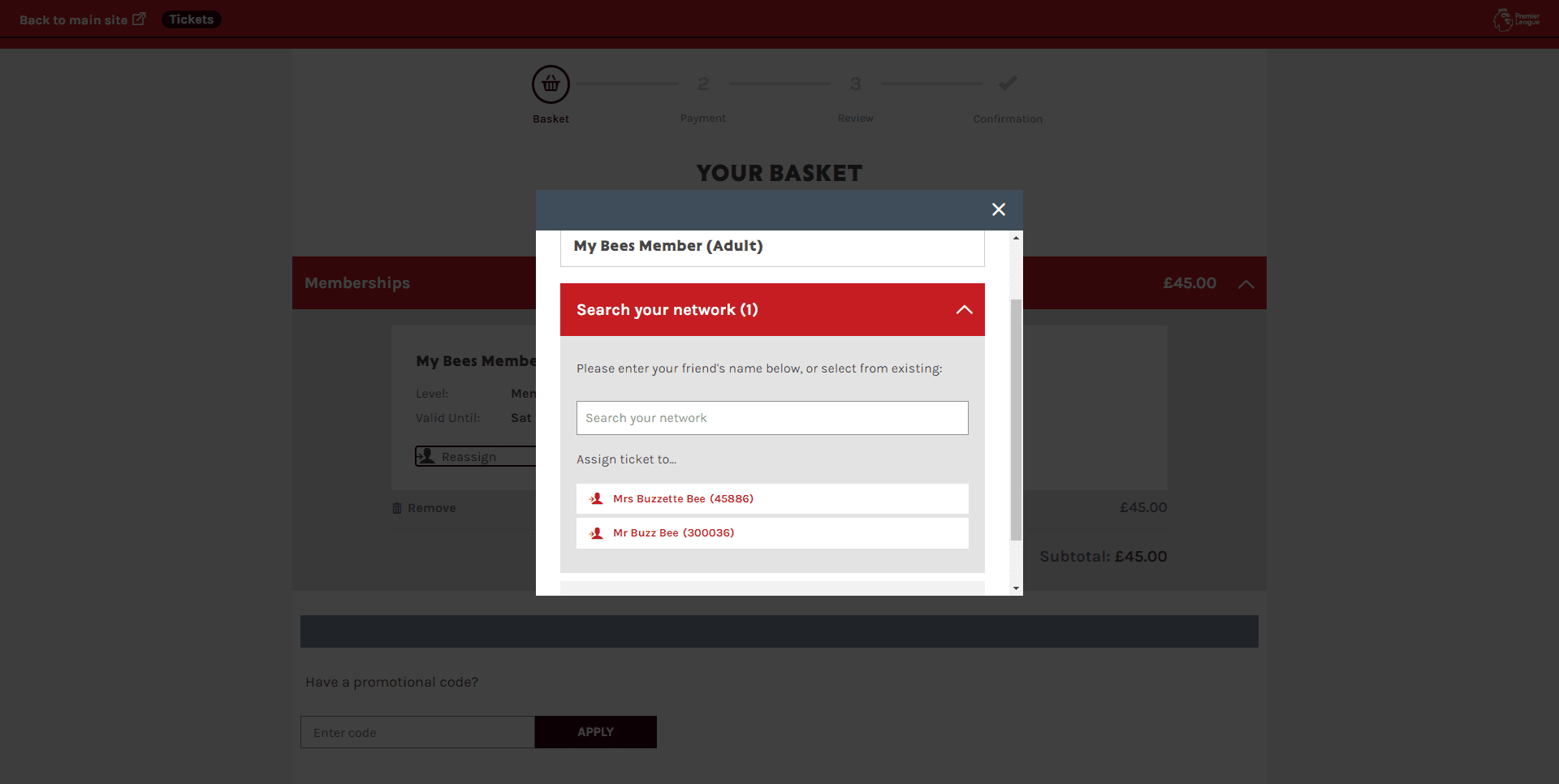
If you are attempting to buy multiple memberships, make sure you reassign each ticket to the correct friends and family member.

Reassign

Step 5.

Next, select your payment method, review your order and confirm your purchase!

Step 1.

Click the Memberships on the homepage banner.


Step 2.

Choose the correct My Bees Membership for your friend.


Step 3.

Choose how many Memberships to purchase and click ADD TO BASKET.


Step 4.

To assign the membership to someone else, click ASSIGN.


Step 5.

Search for the person in your Friends and Family network and select who you wish to assign the membership to.

  • If they are not in your network, search outside your network by entering their Fan Number and Surname.

  • If they don’t have a Fan Number, they will need to create an account.


Step 6.

Proceed to checkout and complete your purchase.

We are giving Bees Overeas a group discount! You can buy four Overseas Memberships for £100.

Step 1.

Select the Bees Overseas Membership.

Bees Overseas

Step 2.

Select 4 Bees Overseas Memberships and add them to basket

4 Bees Overseas Memberships

Step 4.

In the promotional code box at the bottom, type in BeesOverseas

Add Discount Code Bees Overseas

The discount will be added!

How to: Withdraw credit from your ticketing account

Withdrawal requests will be processed by the club on Friday 31 July, 12pm midday. Fans who make credit requests will receive their money before the first Premier League game of the season.

If you wish to withdraw credit on a junior membership account, please contact the box office at [email protected] or call us on 0333 005 8521.


Step 1.

Log in and select the account icon to view your personal hub.

Account Sidebar

Step 2.

Select View Account Menu at the bottom of the sidebar.


Step 3.

Under account management, select Account Cashback.

Account Menu

Step 4.

Enter the amount of credit you wish to transfer to your bank account. Enter your bank details and select Submit Request.

Account Cashback page

Step 5.

Once you have submitted your request, you will see a confirmation message and receive a confirmation email.

Credit withdrawal successful

Please note, there will be no fees deducted from your credit withdrawal.

How to: ticket exchange

STEP 1


STEP 2

  • Having logged in, click on the Account icon.


STEP 3

  • Your most recent event tickets will be displayed. Select 'Manage Tickets.'


STEP 4

  • The games available for management will be displayed. Select the desired game to manage tickets.


STEP 5

  • The Manage Tickets screen will be shown. Information detailing the available features will be displayed. Tick the box next to the ticket you want to place on ticket exchange and click "SELL ON TICKET EXCHANGE."

  • Note: Please verify that you correctly select the ticket with the desired BLOCK, ROW, and SEAT before selling.


STEP 6

  • "You are selling (number of tickets) ticket on ticket exchange to" should be displayed along with the date of expiry. Click on "REVIEW ORDER."


STEP 7

  • A summary of your order will be displayed on the screen, indicating the amount of Account Credit that will be applied.


STEP 8

  • Double-check the seat details and tick the box to confirm your agreement with Brentford's Terms & Conditions of Sale.


STEP 9

  • Click the "COMPLETE" button to place the seat(s) on ticket exchange. You will be sent confirmation of the seats you have placed on the Exchange.

  • The ticket exchange will close at the time of kick-off. If your ticket does not sell during this time, the seat will be reactivated on your season ticket card. However, you will NOT be given a Yellow Card.


NEXT STEPS

If your ticket has been sold on the ticket exchange

Congratulations on selling your season seat! Your seat has been successfully sold and is no longer associated with your season card. An email confirmation will be sent to you detailing the credited amount that will be added to your account. You can utilise this credit for any future purchases related to Brentford FC.

If your ticket has not sold on ticket exchange

Access to your seat will be restored on your season ticket card. You will now have the choice to either utilise the ticket yourself or download it as a Match Pay to share with your friend or family member. But fear not, you will NOT receive a Yellow Card as you made an effort to list your ticket on the Exchange! An email will be sent to you confirming that your ticket has not been sold.

You can remove a season seat from ticket exchange if it hasn't been sold. Once a seat is sold, you cannot reverse the purchase. To remove a ticket from ticket exchange, follow these steps:

STEP 1

STEP 2

  • Having logged in, click the Account icon.


STEP 3

  • Your most recent event tickets will be displayed. Select 'Manage Tickets.'


STEP 4

  • The games available for management will be displayed. Select the desired game to manage tickets.


STEP 5

  • The Manage Tickets screen will be shown. Click on "Posted on ticket exchange."


STEP 6

  • Information detailing the ticket currently on ticket exchange will be displayed. Tick the box next to the ticket you are looking to remove from ticket exchange and click on "WITHDRAW FROM SALE."


STEP 7

  • You have withdrawn the posting of (?) tickets will be shown.

  • The tickets will be restored to your season card. An email confirmation will be sent to you informing you that your ticket exchange has been cancelled or withdrawn.

You can access tickets that have been listed on the exchange via the same ticket purchase journey you would have taken to buy regular tickets.

View the match you want to purchase tickets for and select the ticket exchange toggle. You will see all the tickets that have been listed on the exchange in pink.


Ticket Exchange toggle virtual venue

How to: Season ticket renewals

To purchase a 2026/27 season ticket, you must be an eligible members who meets the qualifying criteria. Eligible members can purchase your season ticket within the sales window, which opens at 2pm on Thursday 7 May and closes at 5pm on Friday 22 May.

Step 1.

  • Head to the season ticket page. Here, you will be able to see the stadium map where you can select your desired seat, then the relevant price class and add to basket.

Season ticket renewal seat map
Select 2025.26 season seat
Select 2025.26 season seat price class
  • Those wishing to move an existing season ticket seat next to a newly eligible member must contact the box office on 0333 005 8521 so that our team can help arrange seats next to each other


Step 2.

  • Continue the checkout process and secure your seat for the 2026/27 season!

If you experience any technical issues, or have any enquiries regarding your season ticket, please contact our box office on 0333 005 8521.

To be able to renew season tickets on behalf of your Friends & Family members, you must be managing their account. More information on assigning permissions to Friends and Family accounts can be found here.


Step 1.

  • Head to the season ticket renewals page. Here, you will be able to see your season tickets, as well as your friends and families. Tick the box next to their name and continue with the purchase journey.

Step 1.

Log onto your account at www.eticketing.co.uk/brentfordfc


Step 2.

  • Having logged in, click on the account icon and head to your account history by selecting: view account menu > account management > account history.


Step 3.

  • Here you will be able to see all your online, call centre and box office activities. Locate your season ticket by the date of purchase/renewal. (You can filter by history type - select purchase history.)

How to: Buy additional premium seats as a premium seat holder 

More than four-six weeks before the fixture:


Step 1.

Log onto your account at www.eticketing.co.uk/brentfordfc .


Step 2.

To find premium seats click the Premium/hospitality tickets page via the tickets banner on the eticketing homepage OR the Hospitality Packages page on the homepage banner.  


Step 3.

Premium seat holders can buy up to six extra tickets for the available home fixtures.   


Less than 4-6 weeks before the fixture:

Once general admission (GA) seats go on sale - typically more than 4-6 weeks before the fixture - the fixture will appear in the Home Games tab under Tickets on the homepage banner. If Premium seat holders attempt to purchase additional seats online after GA seats are on sale, they will see the following page (below).

To purchase additional premium seats offline within four to six weeks of the fixture premium seat holder should contact the premium services team at 020 8380 9930 or email [email protected]. 


For CAT A Fixtures:

Once general admission (GA) seats go on sale, premium seat holders should contact the premium services team at 020 8380 9930 or email [email protected].   


For CAT B Fixtures:

Premium seat holders will be able to purchase extra tickets online via the ticket exchange 72 hours before kick-off.   

How to: Friends and Family

STEP 1


STEP 2

  • Having logged in, click on the Account icon.


STEP 3

  • Click on VIEW ACCOUNT MENU at the bottom right corner of the screen.


STEP 4

  • Select the ACCOUNT MANAGEMENT tab then Friends & Family Network.


STEP 5

  • You will be sent to the Friends and Family Network page. To add someone to your Friends and Family, click ADD FANS.


STEP 6

  • Type in your friend's Fan Number and Surname and click Search.


STEP 7

  • Your friend's account will be presented. To add them to your Friends & Family, click ADD MEMBER.


STEP 8

  • And there you have it! Your friend will appear in your Friends and Family Network. A confirmation message will show in green. Refresh the page, and your new additions will appear!

MANAGE: I can sell the tickets of my Friends & Family member.

ASSIGN: I can buy tickets for my Friend & Family member.


STEP 1


STEP 2

  • Having logged in, click on the Account icon.


STEP 3

  • Click on VIEW ACCOUNT MENU at the bottom right corner of the screen.


STEP 4

  • Select the ACCOUNT MANAGEMENT tab, then Friends & Family Network.


STEP 5

  • You will be sent to your Friends & Family Network. Click the drop-down arrow next to the name of the person you want to manage in your Friends & Family.


STEP 6

  • Manage Ticket Privileges will pop up. Click EDIT beside ‘I can ASSIGN tickets to (NAME)'.


STEP 7

  • Select I can manage tickets for (NAME). Then click SEND REQUEST.


STEP 8

  • An email will be sent to your friend. Your friend will be required to log into their e-ticketing account and grant permission to manage the lead user’s account. They can do this by following steps 1-5 and selecting (NAME) can MANAGE tickets for me.

MANAGE: I can sell the tickets of my Friends & Family member.

ASSIGN: I can buy tickets for my Friend & Family member.


If you are trying to manage or assign privileges to an account without an email, they will not be able to log in to their ticketing account to confirm your request.

Therefore, you will have to contact our Box Office.

Email: [email protected]

Telephone: 0333 005 8521 


Those without an email may include:

  • Junior accounts

  • Shared accounts

If you are one of these cases, please get in touch with our Box Office so you can manage your Friends and Family directly from your account.

If you have forwarded your ticket to a Friend and Family member, you have up until they accept it to get your ticket back.

If they accept your ticket, you will no longer have access to that ticket.

How to: Reserving Tickets

For cup games, Season Ticket Holders will be granted the opportunity to reserve their seats.

To find out how to reserve seats for your friends and family, please see "how to reserve tickets for friends and family".


View our walkthough video

Step 1.

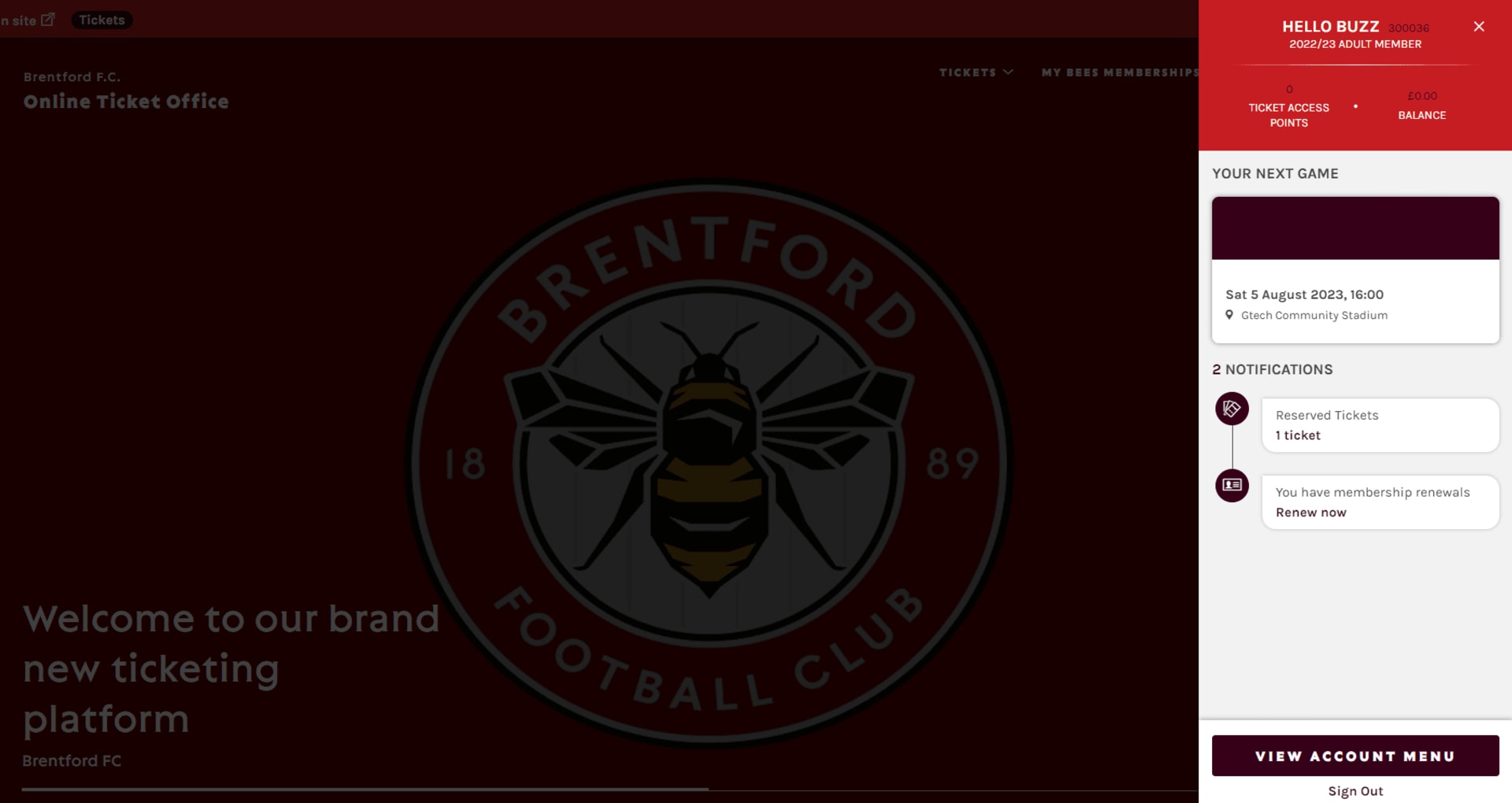
Click on the account icon to view your personal hub.

Under notifications you will see Reserved Tickets (X) tickets.

Reserved tickets 1

(Alternatively, to view your reserved tickets, click the account icon > view acount menu > ticketing > reserved seats.)


Step 2.

You will see your reserved tickets.

Reserved seats 1

To find out how to reserve seats for your friends and family, please see "how to reserve tickets for friends and family".

For cup games, Season Ticket Holders will be granted the opportunity to reserve their seats.

Please note, to reserve tickets for your friends and family, you must be managing their account.


View our walkthough video

Step 1.

Manage your the friend and family member that you wish to reserve the ticket of.

Click view account menu > account management > friends & family network. You will see your Friends and Family members.

Friends and Family Network

Step 2.

Click the fan you wish to manage the account of. Click edit next to "Me I can ASSIGN tickets to _____".

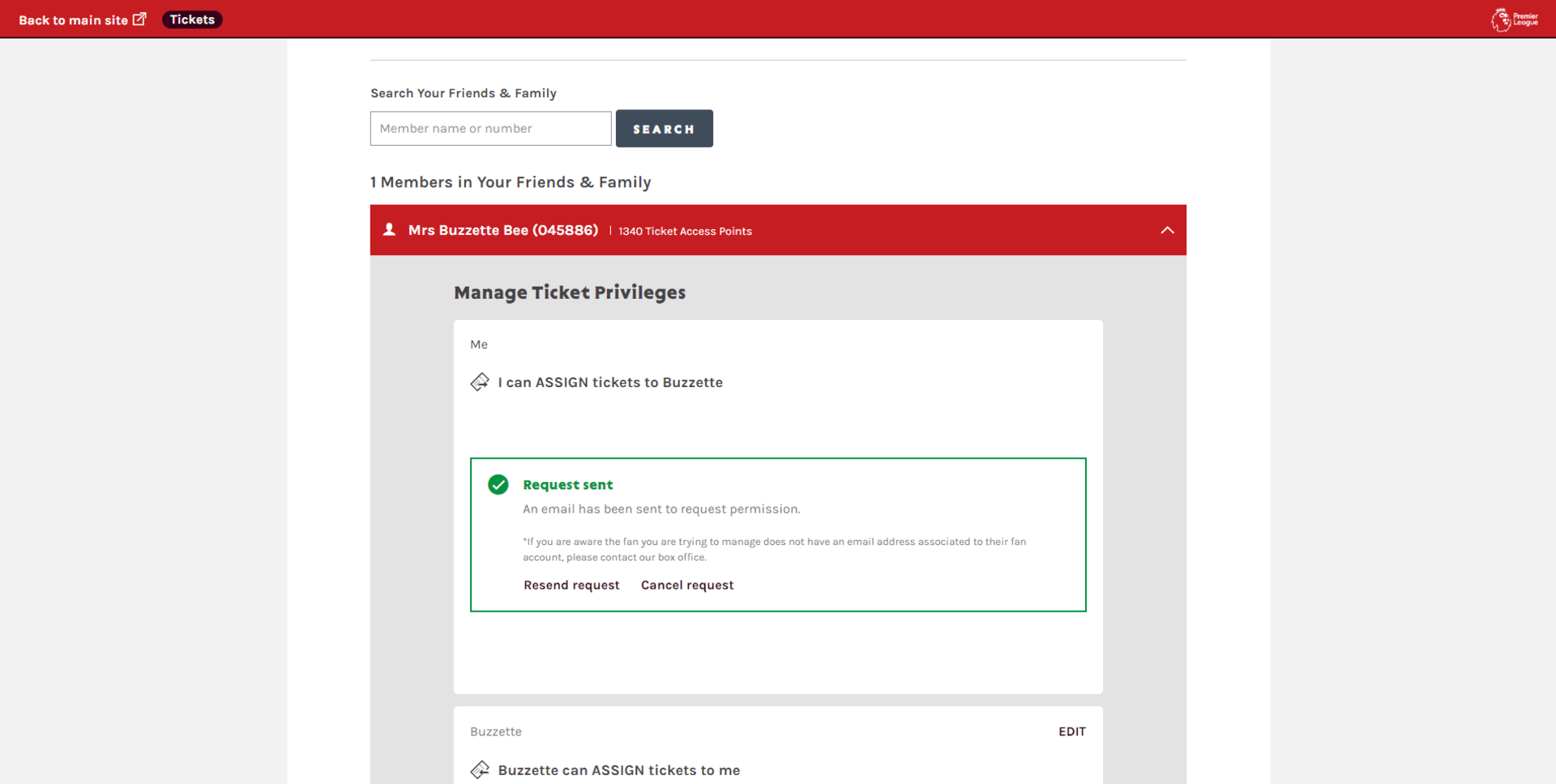
Select "I can manage tickets for ____" and send request. The friend and family member will have to accept your manage request.

Manage request

Please note, if your the fan you are trying to manage does not have an email address associated to their fan account (junior/ shared account), please contact our box office.


Step 3.

Click on the account icon to view your personal hub.

Under notifications you will see reserved tickets

Reserved tickets 2

(Alternatively, to view your reserved tickets, click the account icon > view acount menu > ticketing > reserved seats.)


Step 4.

You will see your reserved tickets of both yours and your friends and family.

Reserved tickets 2

How to buy: Virtual Venue

Getting used to the interface:

  • On web-view you will see a header banner with "Tickets, My Bees Memberships, and Information & Help"

  • On mobile-view, however, to access the header banner you must click the three horisontal stripes at the top left of the page.

Mobile View

The rest of the mobile journey should mirror that of the website.

The header bar controls different aspects of the interaction in the Virtual Venue.

TM how to use filters

1.

  • You can use the '-' and '+' buttons to choose the number of tickets you need. The quantity selector will display sections based on the selected number of seats. It will also automatically show the same number of seats for the fan to view.

(See 1.)


2.

  • You can adjust the price range by using the slider on the price bar or by entering the lowest and highest prices in the designated boxes. This will filter the available seats based on the selected price range.

(See 2.)


3.

  • The 'Select Seat Attribute(s)' selector updates the availability based on the chosen attributes. For example, to see the Premium Experiences on sale, select 'Premium' from the menu.

(See 3.)


4.

  • Toggle this option to filter accessible seats for the selected event.

(See 4.)


5.

  • Click here to reset your filter preferences and start over.

(See 5.)


6.

  • The 'Compare Seats' feature allows fans to see multiple selected seats on the map and compare them side by side.

(See 6.)

  • By choosing the 'View Available Sections' option at the top left of the screen, a list of available seats will be displayed without requiring the fan to click on each section individually.

  • Once you click on your preferred section, you will be directed to the 3D area view, where you can choose your seats.

View available seating

A)

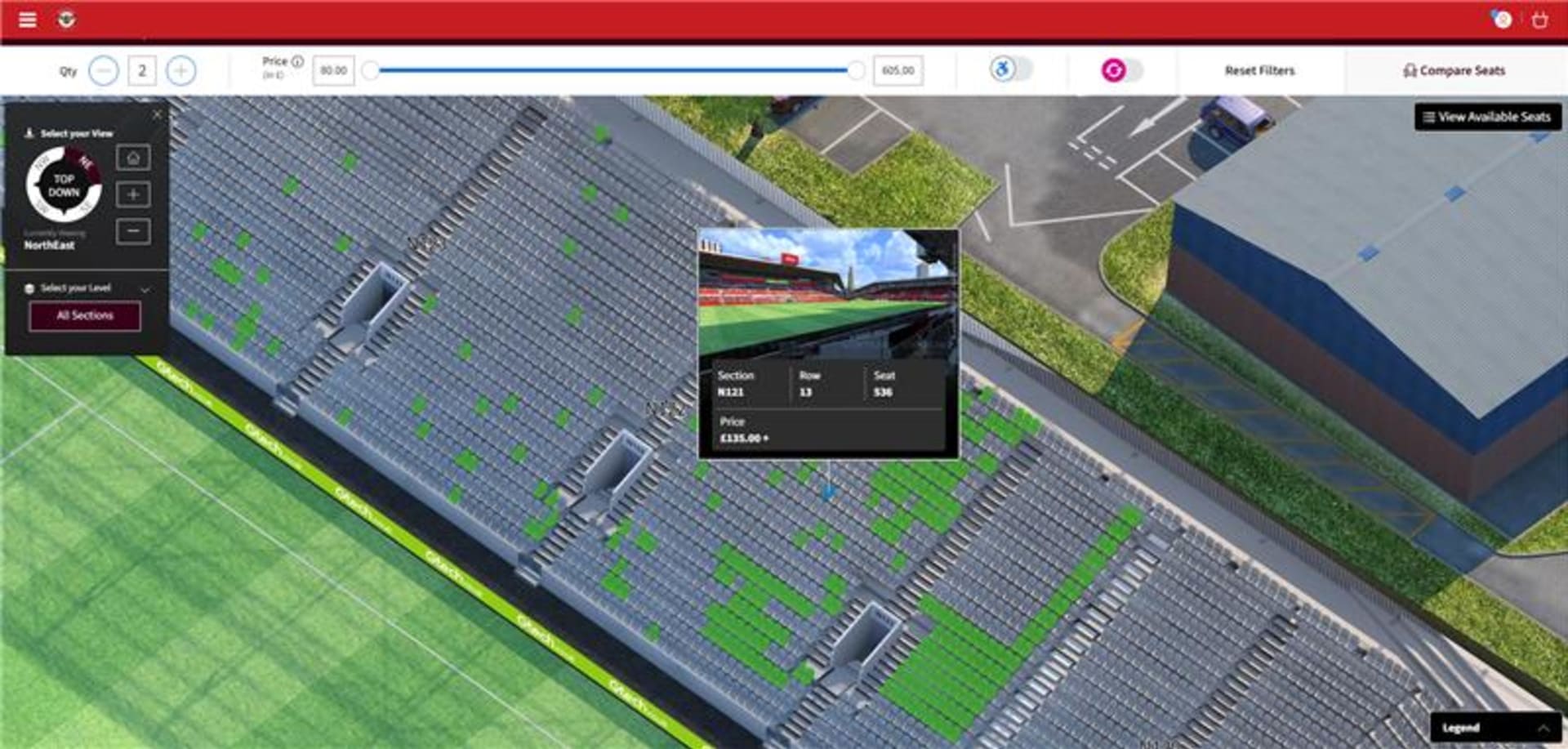
  • To choose your seats using the Virtual Venue map, simply click on the desired 3D section. This action will zoom in on the area, highlighting all available seats in green. When hovering over a seat, you'll get a view of the stadium from that seat, along with details about the section, row, and seat itself. The quantity selector will display the number of seats selected, highlighted in blue when hovering over them, and they will be added to your selection upon confirmation.

Selecting a seat 1

B)

  • Once a seat is chosen, you will be able to view the stadium from that seat in the 3D perspective. From there, you can select the ticket type and price for your seat before clicking 'Add to Basket' to place it in your basket. You also have the option to compare your seats at this stage (please refer to the Compare Seats section).

Selecting a seat 2

  • (The orange warning triangle indicates that there is important information associated with the seat(s). To view the details, simply hover over the corresponding icon.)

To compare multiple seats, you have two options: either click on 'Compare Seats' in the filter bar or select 'Compare Seats' when individually choosing a seat. To begin the process, start by selecting the section and seats you want to compare.

  1. Once you've made your selection, refer to below (1.) to view your chosen seats. If you want to add more seats for comparison, click on 'Select a Seat View to Compare' to return to the stadium's 3D seat view.

  2. From there, you can select another section and set of seats (up to 3 sections can be compared).

  3. To remove any seats from the comparison, click on 'Remove from Compare' [see (2.)].

  4. Once you've selected all the seats you wish to compare, click on 'Compare All Seats' (3.).

Compare Seats 123

'Compare All Seats' will then display the multiple seats you've selected in the compare panel. If you're satisfied with your selection and would like to purchase the seat, click on 'Add to Cart' located below the chosen seats. This will take you to the payment and checkout process (which remains unchanged).

Compare Seats

  • The Virtual Venue provides comprehensive support for accessibility. By clicking on the accessibility toggle, fans can enable it and view all available accessible areas.

  • Accessible seats will be indicated by the accessible icon.

  • After selecting an accessibility-restricted seat, if the fan is eligible for companion tickets, clicking 'Add to Cart' will prompt a pop-up displaying the associated companion seats. To include the companion seat in the booking, follow these steps:

1. When the seat details are presented, click on 'Select'.

2. Click on 'Add Seats to Cart'.

  • Both seats will now be visible in your 'Selected Seats' view, allowing you to proceed to 'Add to Cart'.

  • If fans prefer not to manually select their seats using the 3D Virtual Venue Map, there is an option to disable this feature and let the system automatically assign the best available seats.

  • To switch to this mode, simply click on 'Find Seats for Me' located in the navigation bar. This action will navigate you away from the 3D view.

1. Select the fixture.

2. Select how many seats you wish to purchase.

3. Select the block/area you wish to sit in.

- If you would like to change your seats within this area, select the blue dots elsewhere.

- A message will appear saying "Are you sure you want to choose from your own seats from the map? The tickets found from your search will be released". Select 'yes' to confirm.

- Please be aware of the price band when changing your seats. Make sure you are sat in your preferred area (e.g. family stand/ restricted view).

4. Once your seats are selected, head to your basket and continue to purchase.

How to: Account Details

Single Sign-On

We use single sign-on, which means: if you have previously had an account with us there’s no need to make a new one. Simply log in and you’re in! (We use the same details for ticketing, video, bees store and the Brentford FC app)

STEP 1


STEP 2

  • Click SIGN IN at the top right of the screen.

STEP 3

  • Click REGISTER HERE.


STEP 4

  • Complete your personal details. Make sure you remember the email and password you have entered.


STEP 5

  • Select REGISTER.


STEP 6

  • You are now registered online.

Step 1


Step 2

  • Having logged in, click the Account icon.


Step 3

  • Select view account menu


Step 4

  • Select account management


Step 5

  • Select account details. Here you will be able to edit and add to you account details.